

Member
- Apr
- 142
- 2
+របៀបតម្លើងកម្មវិធី Lumion Pro 11 នៅលើ windows 11
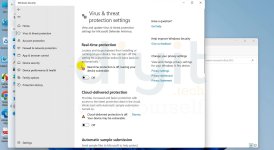
-ជាតំបូងយើងត្រូវបិទ windows defender ដែរយើងទៅចូលទៅកាន់
-Setting រួច update & Security ទៅកាន់ Windows Security ចុចលើពាក្យ Virus & threat protection
-បន្ទាប់មក ចុចទៅលើ manage setting ហើយចុចបិទ Real-Time Protection និង Cloud-Delivered protection
+បន្ទាប់ពីបិទ windows defender រួចរាល់ហើយ អ្នកត្រូវ
-Extract folder Lumion Pro 11
-យើងត្រូវ បិទ Internet របស់យើងដើម្បីធ្វើការ តម្លើង និង Activate កម្មវិធី
-បន្ទាប់យើងត្រូវ ចូលទៅកាន់ folder Setup ចុច Mouse ស្តាំរួចជ្រើសពាក្យ Run As Administrator ដើម្បីតម្លើងLumion Pro 11
-បន្ទាប់ពី install lumion pro 11 រួចរាល់ សុំ Copy lumion.pro.v11-cgp-tpc រួច paste នៅក្នុង Folder lumion pro 11 ដែលយើងបាន install រួចរាល់
-ជំហ៊ានបន្ទាប់យើងត្រូវ copy folder lumion 11.0.1_to_11.0.1.9_Hotfix ទៅកាន់ folder lumion pro 11 ដូចខាងលើ
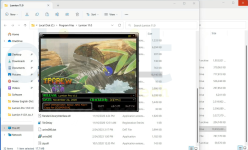
-រួចចុច Run as Administrator ទៅលើ lumion.pro.v11-cgp-tpc នៅក្នុង folder lumion pro 11
-បន្ទាប់មកចុចទៅ ពាក្យ "PATCH" ហើយ Exit
-ជំហ៊ានបន្ទាប់គឺ ចូលទៅកាន់ windows defenders with firewall advanced security
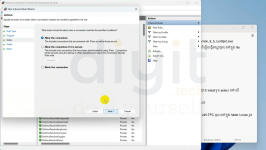
-ចូលទៅកាន់ inbound rules ដើម្បីបិទ Internet connection របស់ lumion pro 11 ដោយចុចទៅលើ
-New rule
-Select program -> next -> this program
path: browse ហើយរកទីតាំង lumion Pro 11 ដែរបាន install រួច select ទៅលើ Application lumion Pro 11
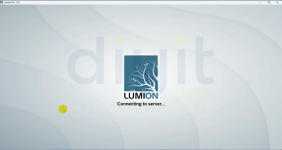
-ចុច Next -> block the connection -> next រួចដាក់ឈ្មោះ lumion connection block ជាការស្រេច
-ចូលទៅកាន់ outbound rules រួចធ្វើតាម inbound rule ខាងលើ
-បន្ទាប់ពីបិទ inbound និង outbound រួចរាល់ អ្នកអាចបើ lumion pro បានហើយ
-ជាតំបូងយើងត្រូវបិទ windows defender ដែរយើងទៅចូលទៅកាន់
-Setting រួច update & Security ទៅកាន់ Windows Security ចុចលើពាក្យ Virus & threat protection
-បន្ទាប់មក ចុចទៅលើ manage setting ហើយចុចបិទ Real-Time Protection និង Cloud-Delivered protection
+បន្ទាប់ពីបិទ windows defender រួចរាល់ហើយ អ្នកត្រូវ
-Extract folder Lumion Pro 11
-យើងត្រូវ បិទ Internet របស់យើងដើម្បីធ្វើការ តម្លើង និង Activate កម្មវិធី
-បន្ទាប់យើងត្រូវ ចូលទៅកាន់ folder Setup ចុច Mouse ស្តាំរួចជ្រើសពាក្យ Run As Administrator ដើម្បីតម្លើងLumion Pro 11
-បន្ទាប់ពី install lumion pro 11 រួចរាល់ សុំ Copy lumion.pro.v11-cgp-tpc រួច paste នៅក្នុង Folder lumion pro 11 ដែលយើងបាន install រួចរាល់
-ជំហ៊ានបន្ទាប់យើងត្រូវ copy folder lumion 11.0.1_to_11.0.1.9_Hotfix ទៅកាន់ folder lumion pro 11 ដូចខាងលើ
-រួចចុច Run as Administrator ទៅលើ lumion.pro.v11-cgp-tpc នៅក្នុង folder lumion pro 11
-បន្ទាប់មកចុចទៅ ពាក្យ "PATCH" ហើយ Exit
-ជំហ៊ានបន្ទាប់គឺ ចូលទៅកាន់ windows defenders with firewall advanced security
-ចូលទៅកាន់ inbound rules ដើម្បីបិទ Internet connection របស់ lumion pro 11 ដោយចុចទៅលើ
-New rule
-Select program -> next -> this program
path: browse ហើយរកទីតាំង lumion Pro 11 ដែរបាន install រួច select ទៅលើ Application lumion Pro 11
-ចុច Next -> block the connection -> next រួចដាក់ឈ្មោះ lumion connection block ជាការស្រេច
-ចូលទៅកាន់ outbound rules រួចធ្វើតាម inbound rule ខាងលើ
-បន្ទាប់ពីបិទ inbound និង outbound រួចរាល់ អ្នកអាចបើ lumion pro បានហើយ
Attachments

Last edited: